RafterSuite gets better every week. Here’s what dealers can do now that they couldn’t at our last update, what’s being built next, and the full platform we’re building toward.
Ask, foundation plans, printable quotes and a sharper designer.
Everything below is built and working in the app. A beta invitation gives you the 3D designer and a view-only look at the back office; estimates, prices and team changes are for company accounts. As always, the 3D model and the price are built from the same design, so what your customer sees is what you price.
Easier to find every choice, easier to place every opening, and a better sense of scale.
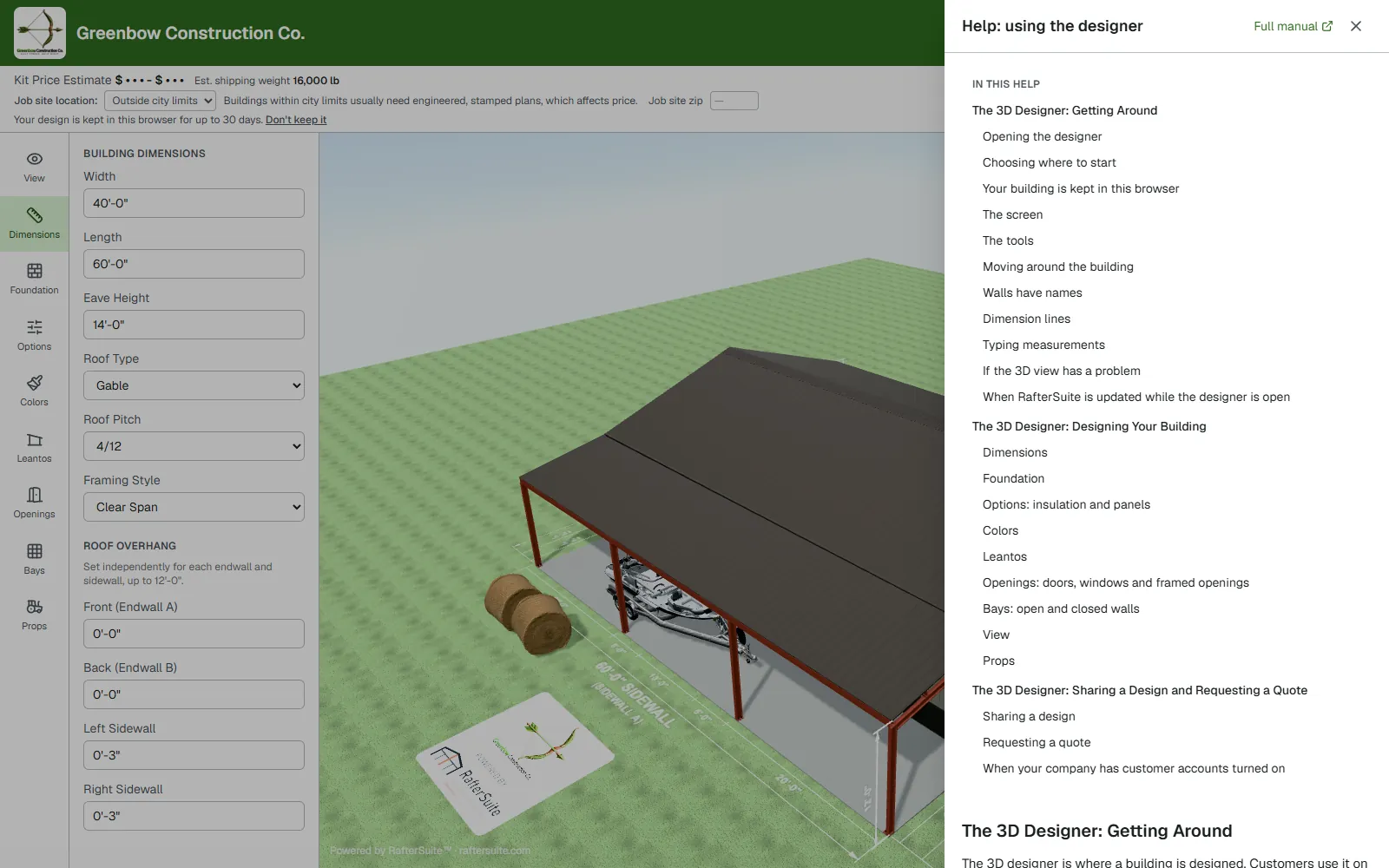
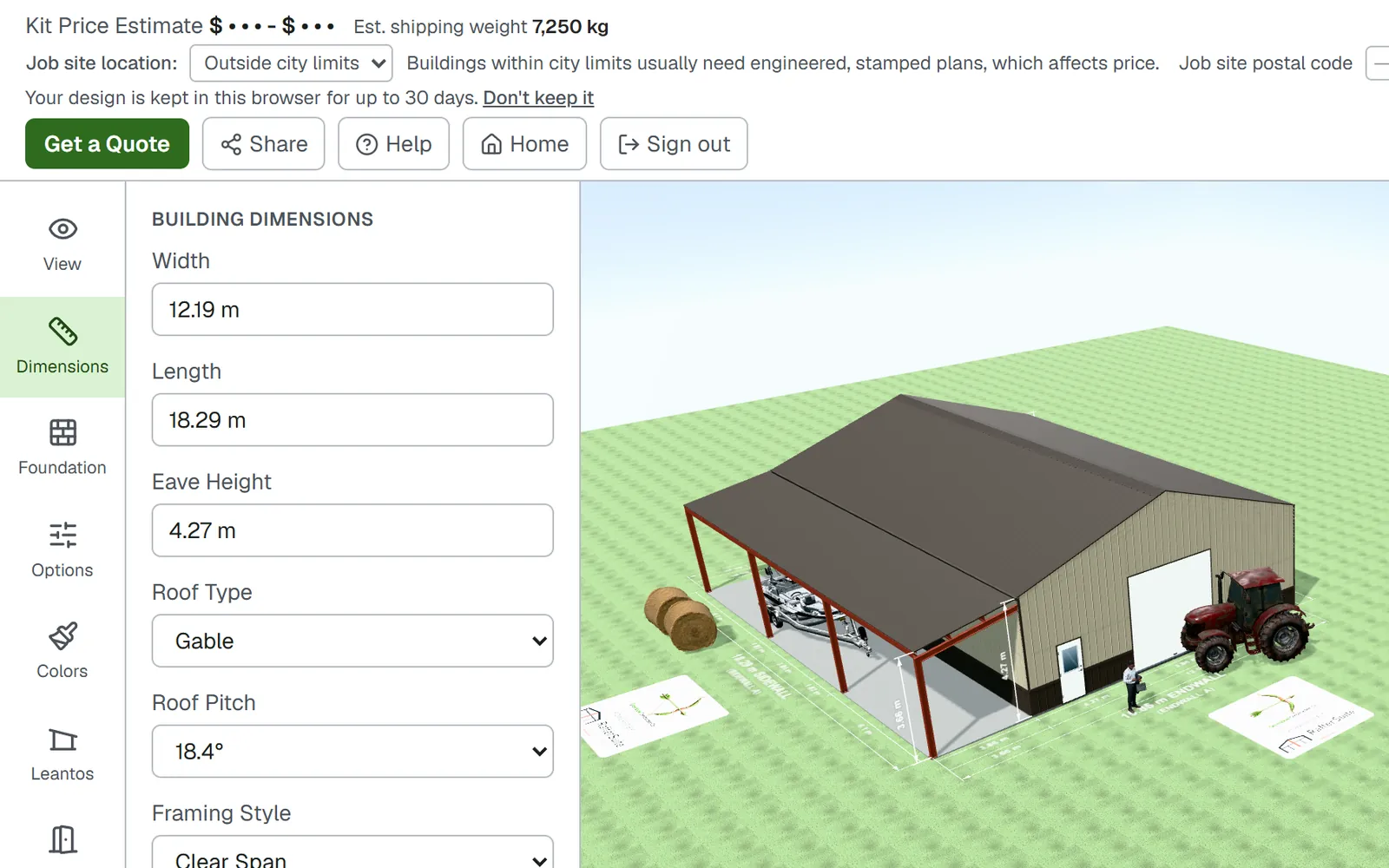
Tidier tabsDimensions, Foundation, Options and Colors each have their own tab, so every choice is easy to find. Roof overhangs now sit with the building’s dimensions.
Separate roof and wall panelsChoose one panel profile for the roof and another for the walls. The 3D view and the price follow both.
Separate roof and wall insulationSpray foam in the roof and fiberglass in the walls? Pick each one on its own.
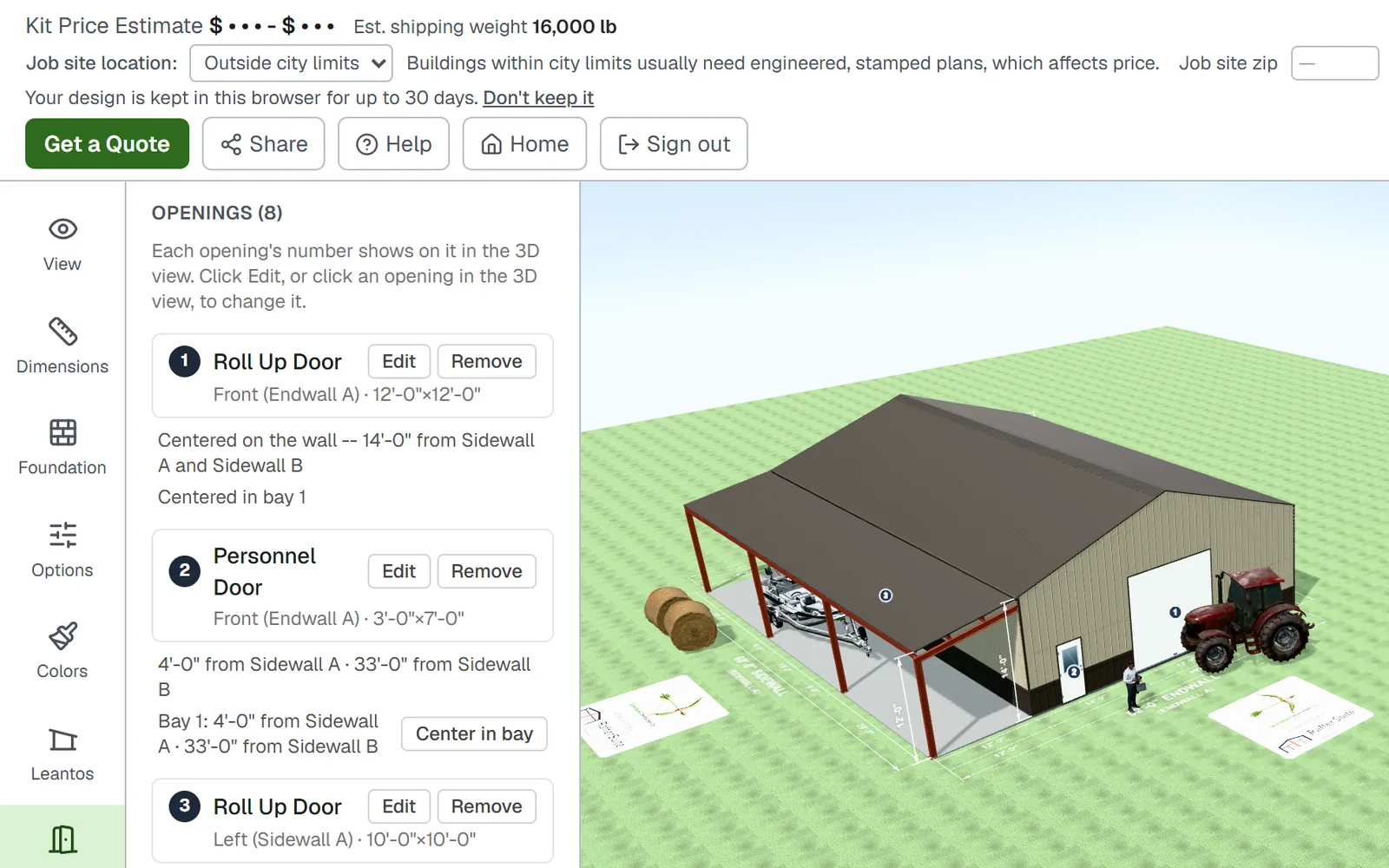
Numbered doors and windowsEvery opening gets a number in the list and on the building, and the same number carries through to the foundation plan.
Place openings by the numbersSet a door or window by its distance from the left or right edge of its bay. Openings stay clear of the columns, and each one’s settings open right beside the list.
Standard window sizes3030, 3040, 3050, 4040 and 6030 windows, with their tops set level with the walk doors.
No accidental deletionsOpening up a bay that has doors or windows now asks first, and one click on Undo puts everything back.
Bays at a glanceEach wall’s bays show as a compact table: tick Enclosed, or click a size to type an exact one. The +/− markers only show on the walls facing you.
Reads like a planSidewall A is on the left as you face Endwall A, the Top view reads like a plan, and each wall’s name shows under its overall dimension.
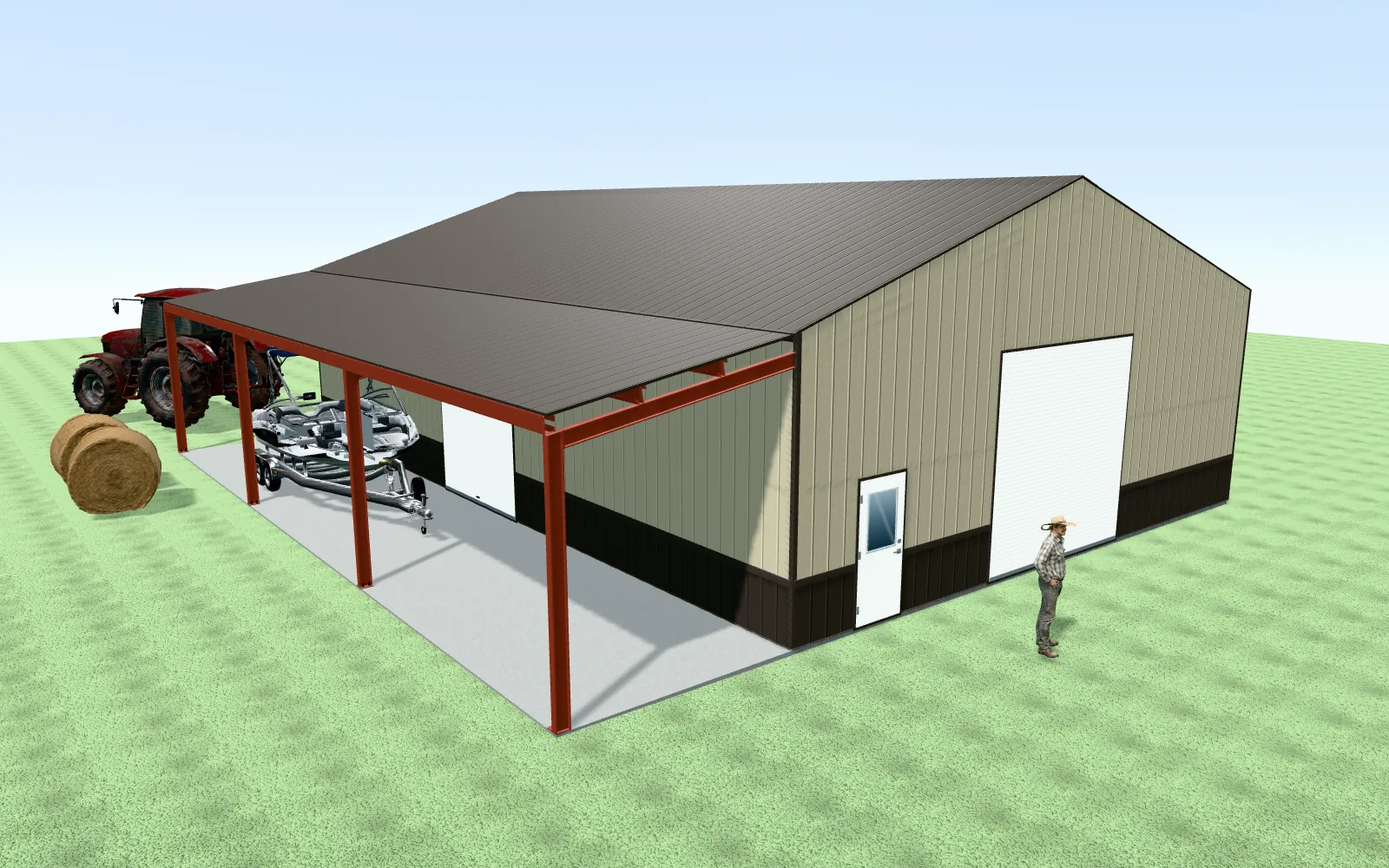
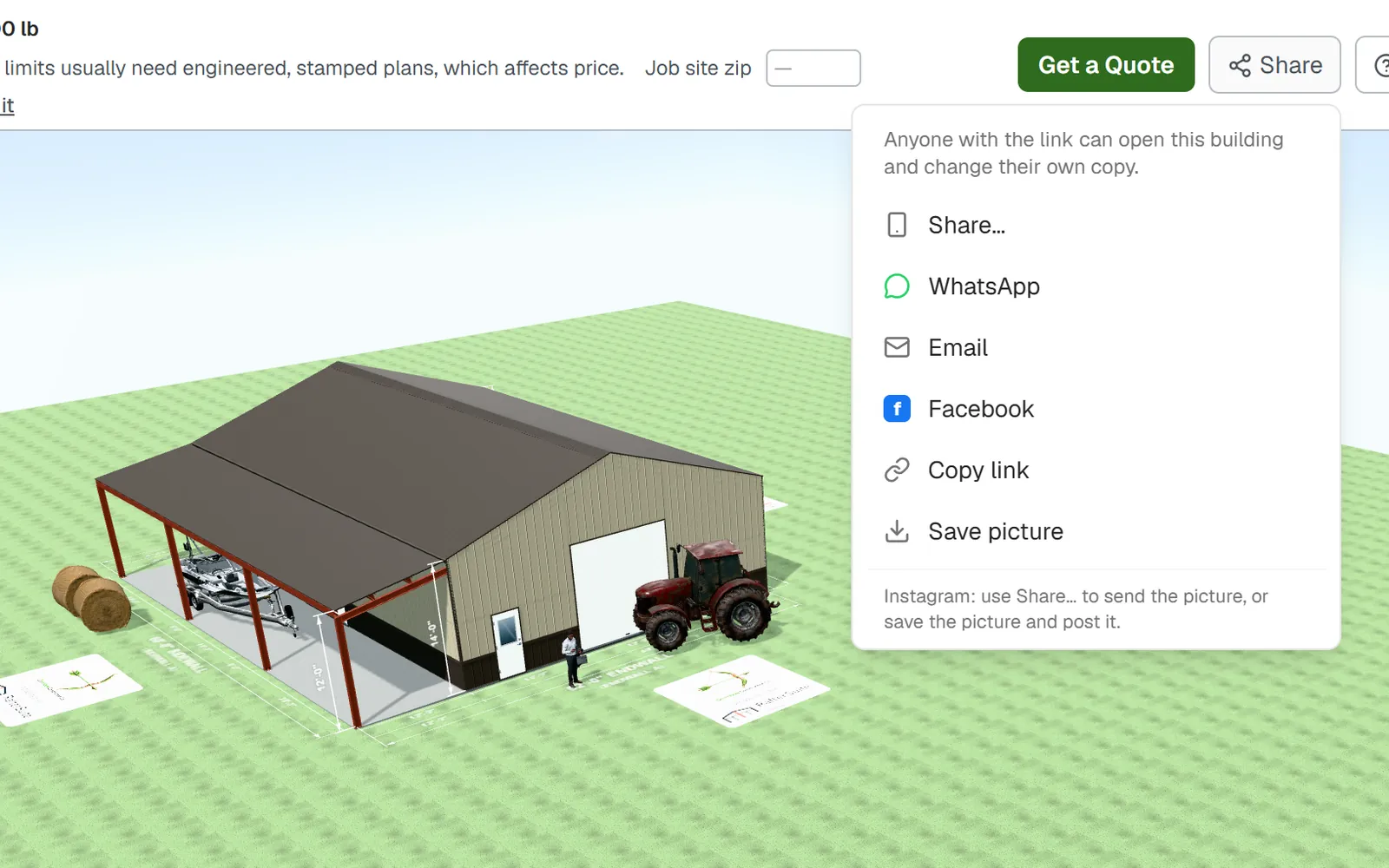
Realistic propsA farmer for scale, a big row-crop tractor and a compact utility tractor, a skid steer, round hay bales, boats on their trailers from 17′ to 28′, a pontoon, a travel trailer, a car on a lift, shelving, pallet racking, a shipping container and more, now as 3D models for scale, so customers get a feel for how their equipment fits. Place them with the mouse, turn them, move them.
Job site locationCustomers choose Within city limits, Outside city limits or Not sure. “Not sure” is priced the safer way, and the estimate reminds your rep to confirm.
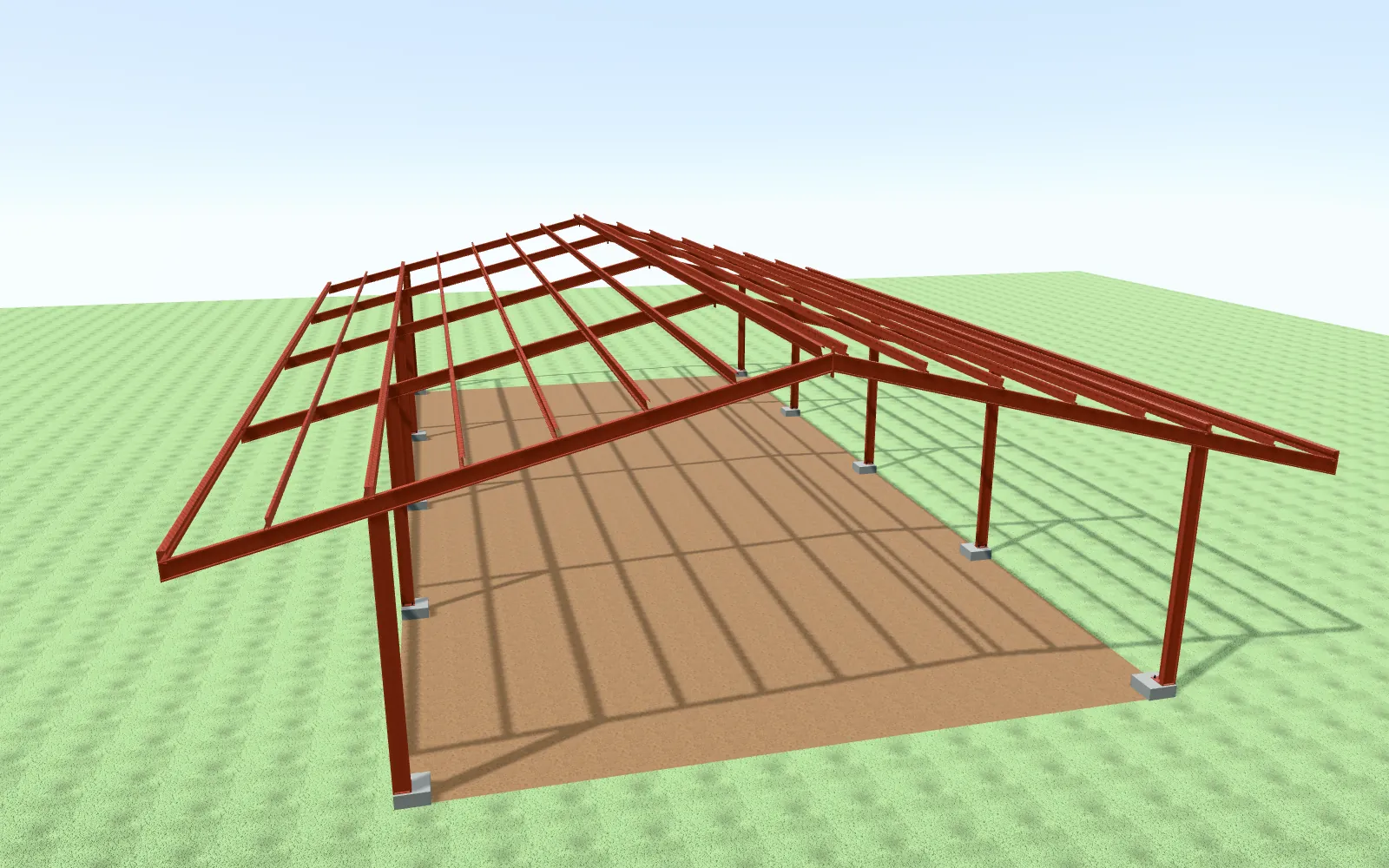
Templates you can recognizeEach template tile now shows a drawing of its steel frame, gable or single slope.
Customers pick up where they left offAt every dealer, the designer keeps the customer’s building in their browser for up to 30 days, so a closed tab or a reload doesn’t start them over. One click turns it off.
Safe through our updatesWhen we release an improvement while a customer is designing, their page keeps working. If it falls behind, it says “This page has been updated” and offers to reload, with their building kept; the last price stays on screen, marked “Price not updated”, instead of failing. A building saved before an update still opens after it, brought up to date, with a short note on anything that changed; a quote request from an older page is priced as usual, and the lead email lists what changed for your rep.
02
Foundation plans & printing
A foundation plan drawn from the same design as the 3D model, ready to print under your name.
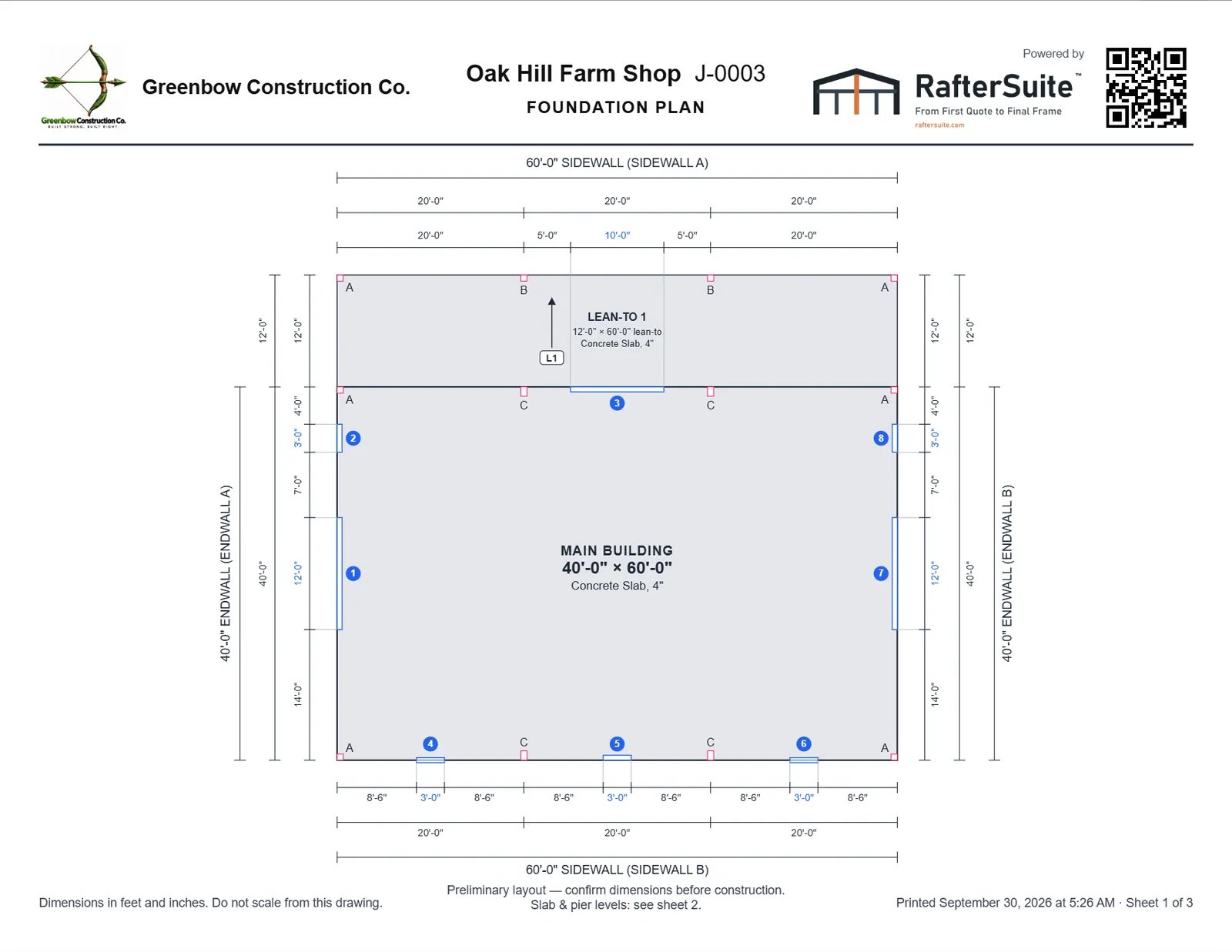
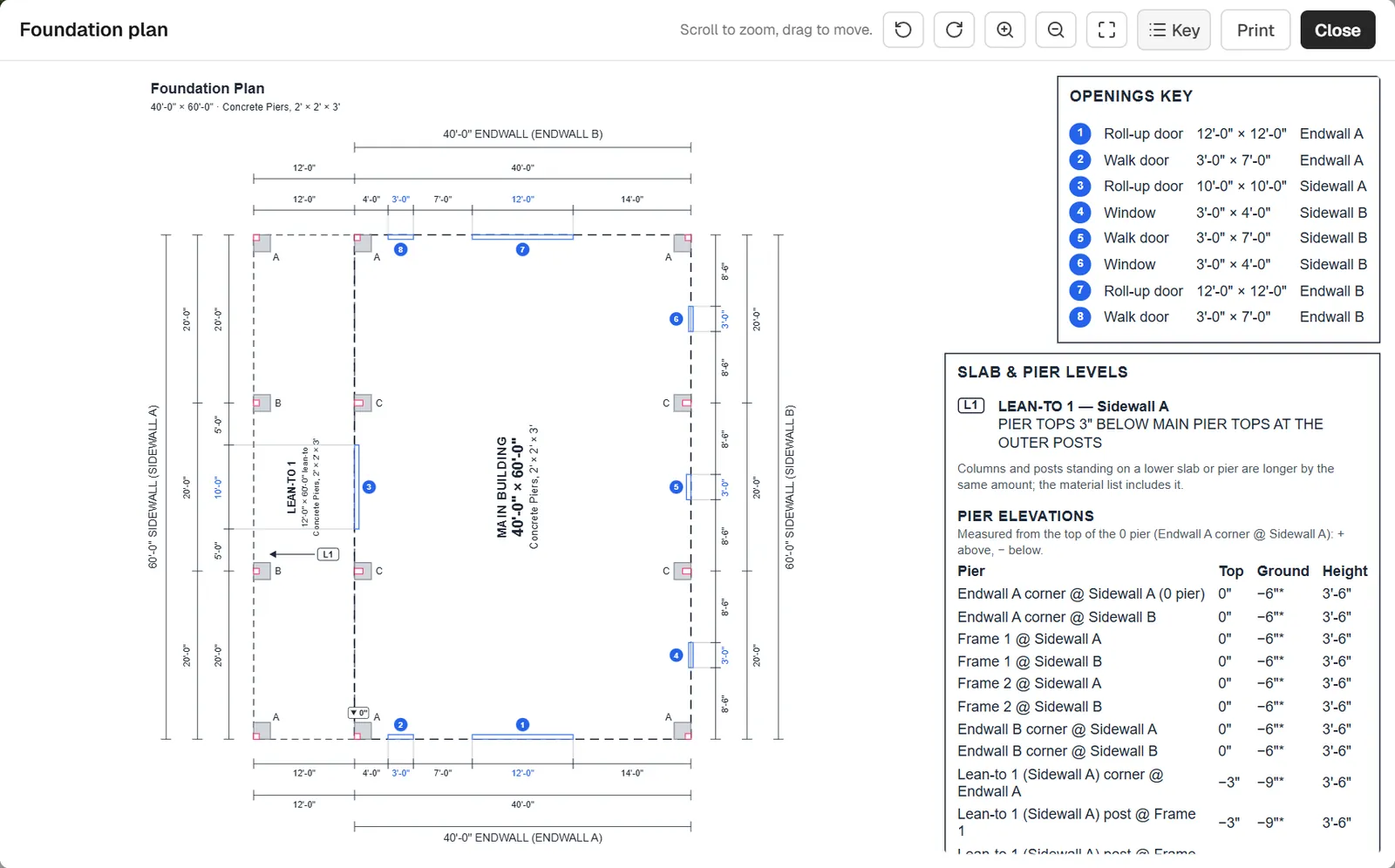
Foundation plan in one clickThe new Foundation tab holds every foundation choice and a Show foundation plan button. The plan shows the slab or piers, every column, the lean-tos with their posts and footings, and each door and window.
Every opening dimensionedDimension strings locate each door and window from the corners and columns, then the bays, then the overall length, the way a drafted plan does.
Baseplates lettered at every columnEach baseplate is drawn to its real size and lettered by kind (A, B, C…), the same letters as on the estimate’s material lines. Point at one to see which plate it is and where it goes.
Baseplate detail sheetsThe printed plan adds a drawing of each lettered plate on graph paper: its size and kind, thickness, and anchor bolt holes at their real size, with how many there are and where they’re used.
Numbered openings keyEach opening keeps its number on the plan, and a key lists its kind, size and wall.
Turn, zoom and panRotate the plan a quarter turn at a time, zoom with the mouse wheel and drag to move around. Labels always stay readable.
Print-ready sheetsThe print preview shows the sheet at its real size and turns the plan to fill the paper. Print on Letter, Legal, Tabloid or A4, or save it as a PDF.
Open areas sit lowerWhere an open bay or an open lean-to meets an enclosed part of the building, its slab or pier tops step down 1-1/2″ so rain can’t run inside, and a wide one slopes away another 1-1/2″. The columns and posts there are drawn and priced longer to match, and page two of the plan lists every level. The amounts are your settings.
Pier heights for sloped sitesYour reps can set how far each pier stands above or below the main slab. Each column is built to its own length, and the plan lists every pier.
Your name on every sheetPlans printed from a job carry your logo, the job name and number, “Powered by RafterSuite” and a QR code that opens the job in RafterSuite for your team.
03
Estimates & quotes
A clean quote to hand your customer, and estimates that stay right as the design changes.
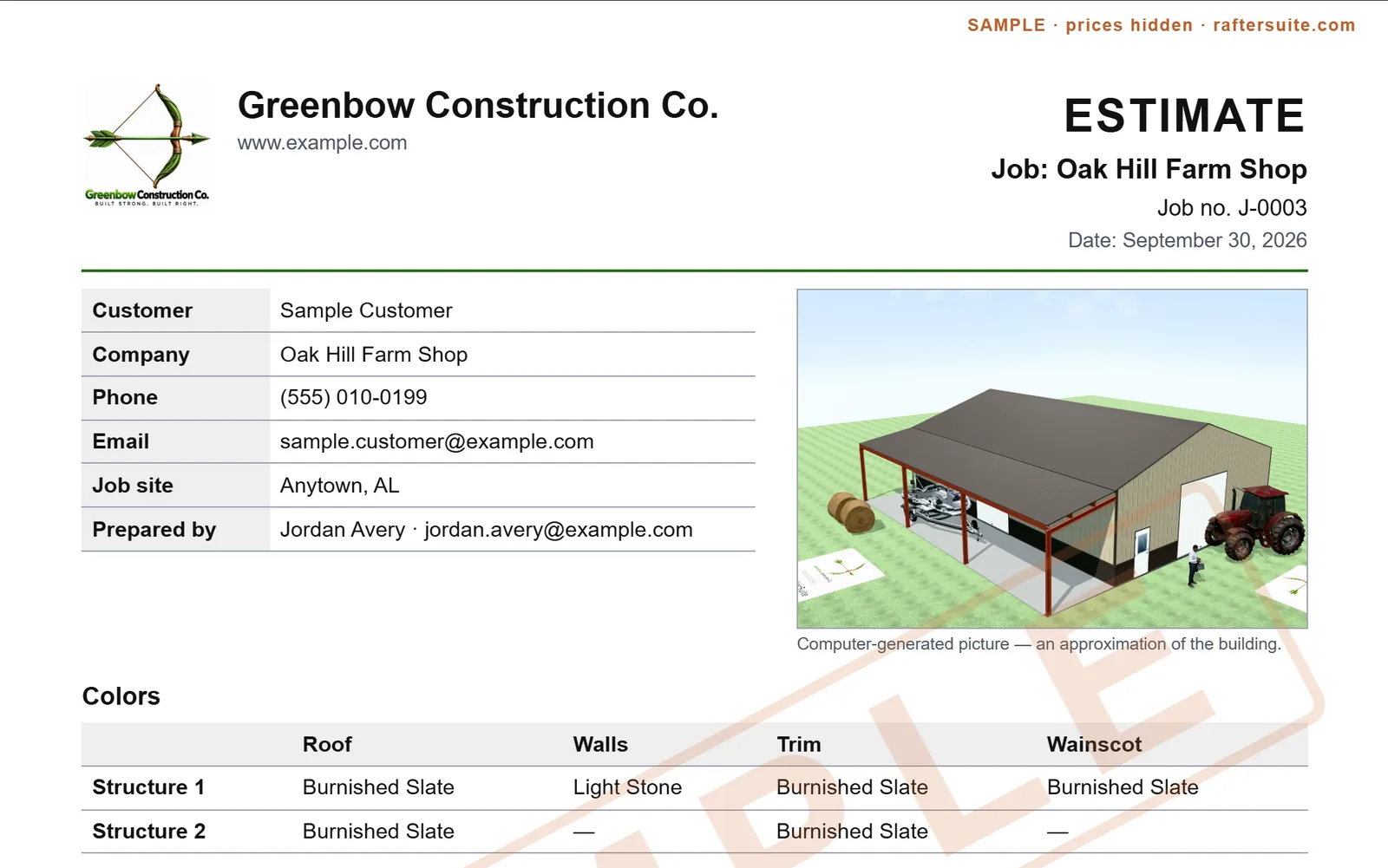
Printable quotesPrint a clean quote on your letterhead with the customer’s details, a picture of their building, its colors, what’s included and one price range. Line items stay in your office.
Your quote, your termsSet the phone, email and address on your letterhead, how many days an estimate is valid, and your own conditions, or use the standard ones. You also choose how wide the price range on the quote is: plus or minus 5% unless you change it.
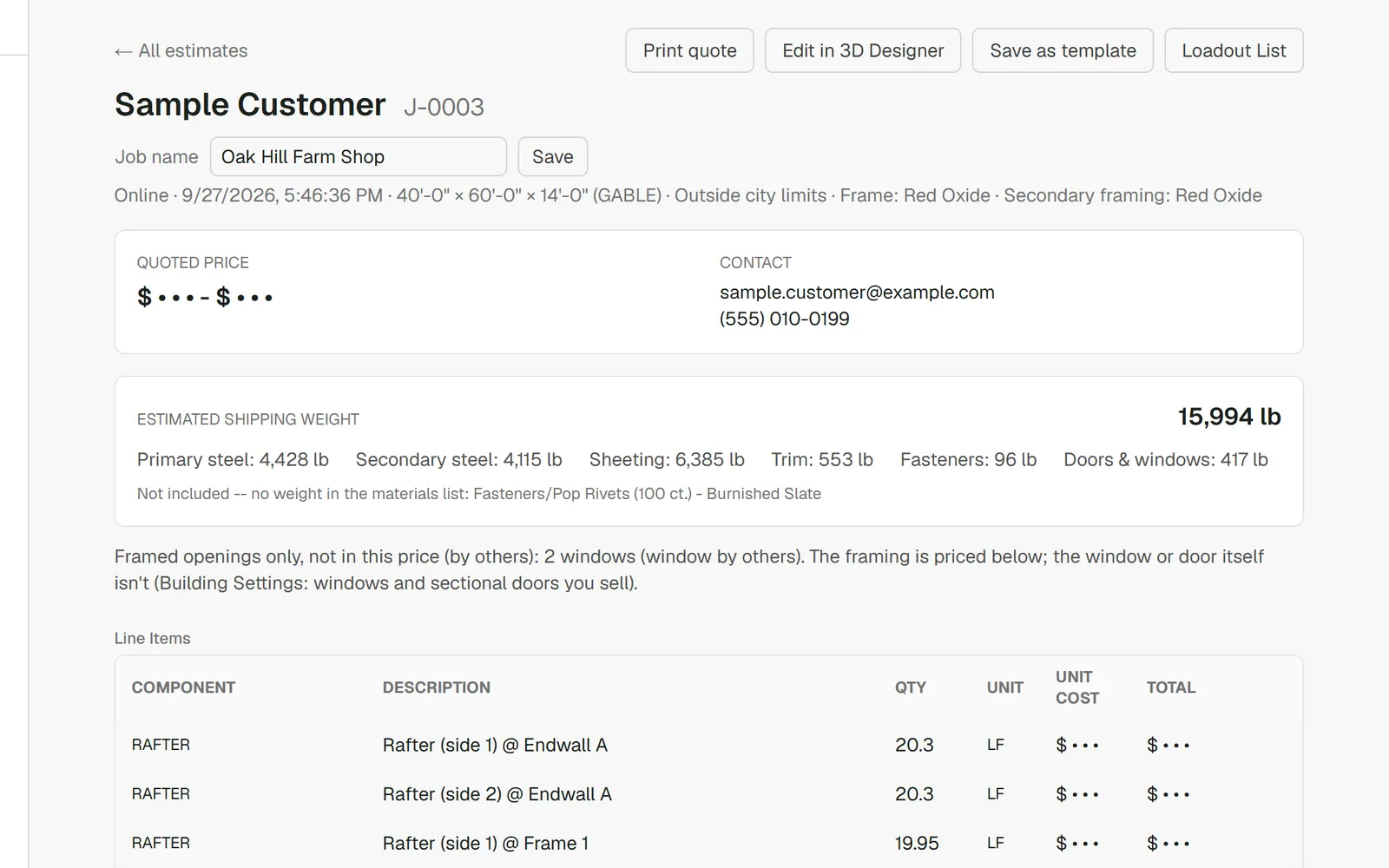
Job numbersEvery estimate gets its own job number, like J-0012, counting up for your company. It’s on the estimates list, the printed quote, the loadout list, the foundation plan and the lead email’s subject line.
Job namesGive each estimate a job name for its printed quote and plans. Until you do, it uses the customer’s last name.
Save a job as a templateA job worth repeating becomes one of your templates straight from its estimate: click Save as template and name it, no designer needed. Only the building is copied, never the customer’s details. Adjust it like any template; customers don’t see it until an owner or admin publishes it. For owners, admins and sales reps.
Design changes reprice the estimateSave a change to a customer’s building and the estimate is repriced from today’s prices, keeping the items your reps added by hand.
Price the odd itemAny line that needs a price gets a price box right on the estimate. Your rep fills it in and the price range updates.
Tighter numbersBase trim runs only along solid walls, piers are counted under endwall uprights, and every lean-to post is counted once.
Takeoffs the way a crew ordersWall panels are counted per continuous wall and rounded up once. Roof purlins are priced with their laps, 12″ past each interior frame, and your rep can enter a longer lap when the engineer’s plans call for one. Butyl tape goes on roof panel laps and under the ridge cap, and foam closures go where a lean-to roof meets the wall, and nowhere else.
Unusual featuresYour rep can add an Unusual features line to any estimate: describe what’s out of the ordinary, like tight site access or a special detail, and add an extra charge or a discount. The customer still sees one price.
Concrete to orderFor a slab, the estimate shows how much concrete the job really takes: the slab, the perimeter footer and the piers, plus 10% to order. The slab’s price doesn’t change.
No lost quote requestsA quote request from a page opened before an update still goes through. If its building can’t be priced automatically, it’s saved anyway for your sales rep to price by hand. If a detail needs fixing, the form points to the exact box and keeps everything the customer typed.
Try pricing againIf a quote request can’t be priced automatically, it’s saved anyway, and one click on its estimate prices it in full once the problem is fixed. Items your rep added or priced by hand are kept.
Windows and sectional doors, your wayStandard windows and sectional doors are in the catalog, ready for your prices. Don’t sell them? Switch either one off and RafterSuite frames the opening only, and says so plainly, “Window provided by other” or “Door provided by other”, in the designer, on the estimate, the loadout list and the printed quote.
No door left unpricedA walk door or roll-up door with no product picked gets a line for your rep to price, instead of quietly dropping out of the estimate.
Retire a choice, keep the buildingRemoving a color retires it instead of deleting it, and you can bring it back any time. When a saved building uses anything you no longer offer, such as a color, a door, a roof pitch or wainscot, it opens with that choice kept and marked “no longer offered”. The customer sees a plain note that your sales rep will confirm it, and the lead email lists it.
04
Framing, lean-tos & shelters
More of the steel your shop actually builds, drawn and priced the same way.
Express SheltersYour team can turn a clear-span building into an open shelter whose roof reaches about 10′ past the columns on each long side. Beams are sized for the span between the columns, and longer overhangs are flagged for an engineering check.
Gable overhangs, drawn and pricedPurlins and eave struts run out past the endwall, up to 6′ on a bypass endwall and 3′ on a recessed one, with the roof panels, ridge cap, trim and gutter following. Longer overhangs are flagged for your rep to check. Eave overhangs are priced the same way, slope by slope.
Wind columnsYour reps can make any endwall corner column a wind column: a wind beam welded to the column and capped, standing on its own wind column baseplate. It’s drawn in 3D, priced, and lettered on the foundation plan. The AG Shelter and both Express Shelter templates come with one at each corner.
Black framesBlack joins red, gray and white oxide and galvanized as a frame color.
Every column cappedEach I-beam column and lean-to post gets its cap, drawn and priced, with the column cut to fit. On engineered jobs, your reps can choose standard or engineered uprights.
Columns match their raftersEvery frame column is sized to match its rafter, in the 3D model and in the price.
Side-by-side lean-tos share a postTwo matching lean-tos that meet on one wall now share the post between them, in the 3D model, the price and the foundation plan.
The right plate at every lean-to postLean-to corner posts get endwall baseplates and the posts between get interior ones, with endwall anchor bolts set clear of the column.
Door jambs on their base platesRoll-up door jambs now stand on their base plates in the 3D frame, just as they’re priced.
Extra wall girtsYour sales reps can add an extra girt line to any sidewall bay, for a customer’s needs or an engineer’s plans. The 3D view and the price follow.
Lean-to foundationsEach lean-to gets its own foundation choice, so a lean-to on piers can sit beside a building on a slab.
Baseplates lettered by kindThe same plate gets the same letter at every column, on the estimate’s material lines and on the foundation plan.
05
Help & Ask
Answers for your team and your customers, right where they’re working.
Ask, a built-in help assistantYour team can ask how to do anything in RafterSuite, under Help → Ask RafterSuite or with Ask in the designer, and get a short answer from the user manual, with links to the sections it used. Customers in your designer can ask how to use it, such as adding a door or changing colors. Anything it can’t answer comes to you by email, with the customer’s contact details. It can’t see or change anyone’s building, prices or account.
A built-in user manualEveryone who signs in gets a plain-language manual under Help → User Manual, updated whenever RafterSuite changes.
Help inside the designerA Help button opens the designer chapters beside the building, so nobody loses their work to look something up.
06
Roles & setup
Everyone on your team sees what their job needs, and a new company starts out on the right foot.
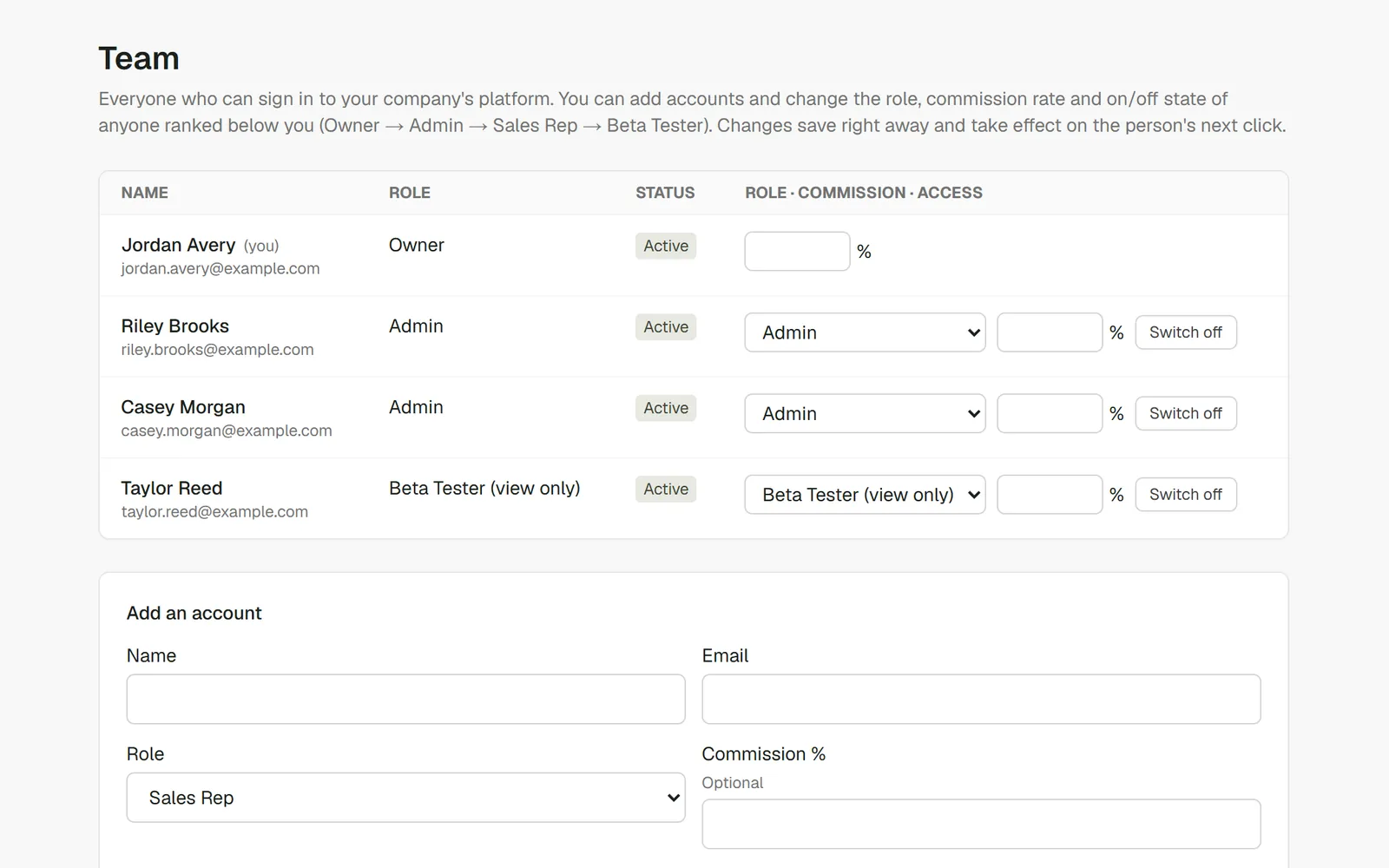
Each role sees what it’s forSales reps get estimates, their own templates, the designer and their account. Company settings, prices, margins, rules and the team are for owners and admins only. The app enforces this rather than just hiding the buttons, and every refused attempt is logged. Beta testers never see customer leads, costs or margins.
Starter tables marked as examplesA new dealer’s starter engineering tables are clearly marked as examples, to check against your engineer’s tables and local standards, until an owner or admin reviews them.
Coming soon
What we’re building next.
These features are planned and scheduled. We’ll move each one into “What’s new” when it reaches the beta. Order and timing can change as we test with dealers.
Coming soon
In the designer
Undo and Redo for every change, with Ctrl+Z and Ctrl+Y on a keyboard.
A tablet layout where the settings slide over the 3D view, so the building gets the whole screen.
A simpler phone designer: spin the building, change colors, share it and request a quote, then send it to yourself to finish on a bigger screen.
Door and window sizes in inches: type 36 and get 36″ (3′-0″).
Coming soon
Sales & follow-up
Estimate statuses from New to Sold (deposit received) or Lost, with the reason. A sold estimate locks its price.
Assigned reps: owners and admins assign and reassign estimates, and a “needs a new rep” list catches the rest.
A thank-you email to the customer with a picture of their building and their price range.
Never miss a lead: a clear flag if a lead email didn’t go out, plus a backup address.
A full history on every estimate: status changes, assignments, links sent and price edits on one timeline, plus a view count for every shared link.
Coming soon
Pricing & materials
Slab choices: your slab, concrete supplied by the customer, or your labor with their concrete.
Piers under interior posts: on pier foundations, the interior posts of a multi-span building get their own piers, drawn, priced and counted in the concrete.
Anchors chosen by building type: slab or pier bolts, wedge anchors and door jamb anchors on the material list.
Engineered-plan controls: an “engineered plans required” switch on each estimate, and matching an engineer’s column sizes.
4″ × 4″ tubing posts for lean-tos, where the size allows.
Coming soon
For your company
Accept customer payments through your own payment account, switched on by you. RafterSuite never holds your money.
No accidental $0 prices: until every catalog item has a price, customers see “Request a quote for pricing”, and your office gets a list of what still needs one.
Where RafterSuite is headed
One platform, from first quote to final frame.
Here’s the full picture of what RafterSuite is being built to do, and where each part stands today.
Available in beta
3D building design
Customers and reps design in a live 3D model under your brand: clear-span, multi-span and single-slope buildings, lean-tos and wrap-arounds, doors and windows, panels, colors, wainscot and insulation.
Available in beta
Estimating from your numbers
Every change reprices from your catalog, rules and margins. Steel is sized by your own tables, and the material list matches the 3D model, down to the shipping weight.
Available in beta
Quotes & sharing
Quotes on your letterhead with one price range, quote requests straight to your office, and share links customers can send by text, email or social media.
Available in beta
Foundation plans
Plans drawn straight from the design, with lettered baseplates and a detail sheet for each, printed under your name. Open areas step down and slope away on the plan and in the price. Still to come: plans your team can adjust.
Available in beta
Your team & your settings
Roles for owners, admins and sales reps, sign-in with passkeys, templates your team shares, and control over which options customers can pick.
Available in beta
Feet and inches, or metric
Each dealer chooses its measurements, currency and paper size, for dealers across English-speaking countries.
Coming soon
Sales pipeline
RafterSuite Sales
Estimate statuses, assigned reps and a complete history of every estimate, so every lead has an owner and nothing slips through.
Coming soon
Customer payments
The first piece of RafterSuite Financials
Take payments through your own payment account, with one switch to turn it on. The money goes straight to you.
On the roadmap
Projects & documents
RafterSuite Projects
Every customer, conversation and document for a building in one searchable place. Scan paperwork with a phone or tablet camera, and use the QR code on a printed page to open its project.
In development
Shop & crew packages
RafterSuite Shop and Installation
A fabrication package for the shop, with a job summary, the foundation plan, a cut list and a drawing of every shop-built piece, marked the way your shop already marks them. The shop package is being built now; a package for the installation crew follows.
On the roadmap
Accounting hand-off
RafterSuite Financials
When a job sells, send the customer and invoice to your accounting software, so nobody types it twice.
Coming soon
Customer accounts
Customers create a free account with a one-time email code (no password) to request a quote, right over the designer without losing their building, then see their quote requests any time. Built; switched on for your company on request once our Terms are published.
On the roadmap
Insights
RafterSuite Insights
A dashboard of the numbers that run your business, such as pipeline, close rate and margin, with measures you define yourself.
On the roadmap
Your data, your database
Each company’s records kept in a database of its own, so your customers and prices stay yours.
Available in beta: built and working in the app today. In development: being built now. Coming soon: decided and next in line. On the roadmap: planned, and being designed with dealers.